Swim planning for iPhone and Apple Watch
Head to the pool with a plan.
Get a swim plan based on your history and profile.
Adjust it for today, follow it on Apple Watch, and review your swim.
iPhone · Apple Watch / iOS 18+ · watchOS 11+
Plan. Swim. Review.
01 · Plan your swim
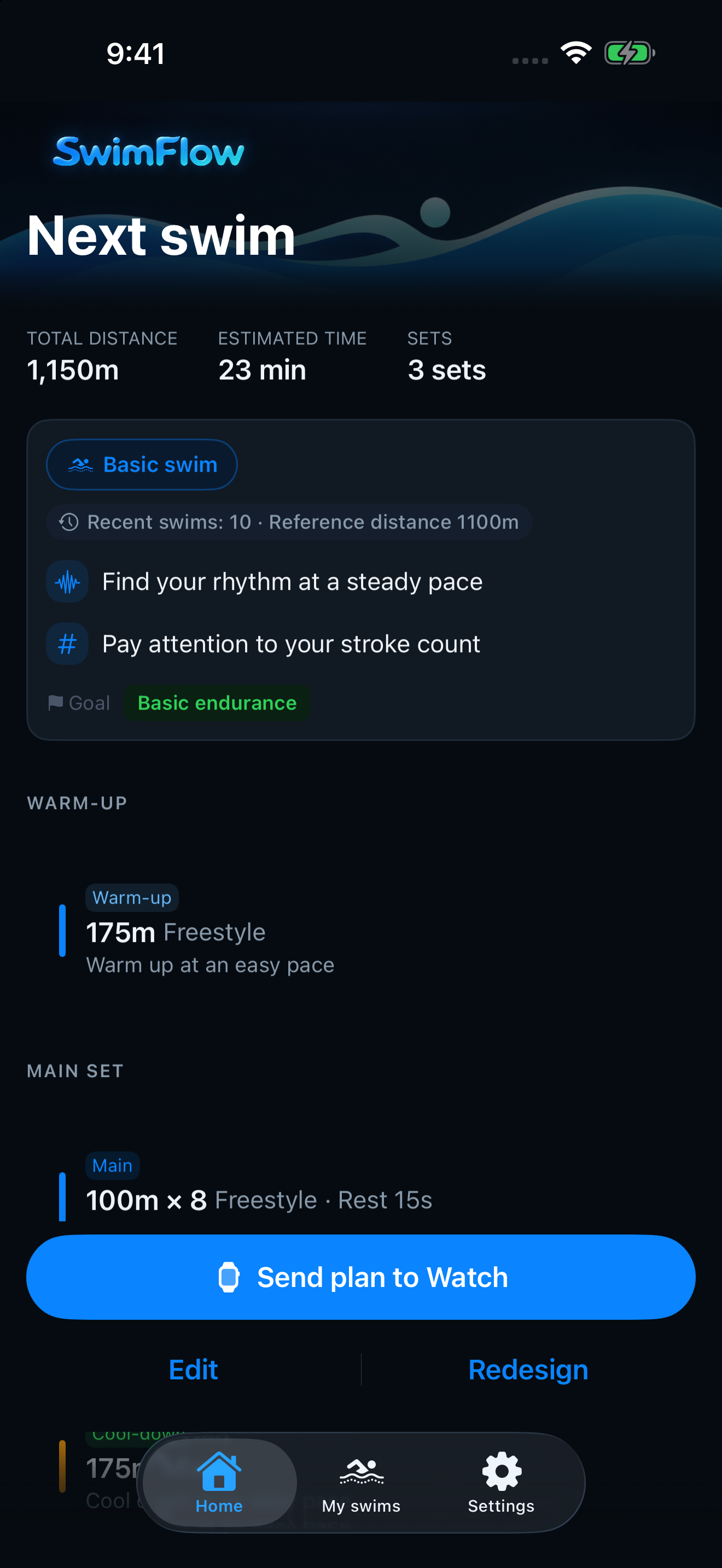
Know what to swim
before you get in.
See why the plan was suggested and what to focus on.
Adjust the strokes, distance, reps, and rest to suit today’s swim.
02 · Follow your plan
Your plan,
on Apple Watch.
Check your stroke, reps, and pace.
See your current stroke, how many reps you’ve completed, and your last completed rep’s pace per 100 meters.
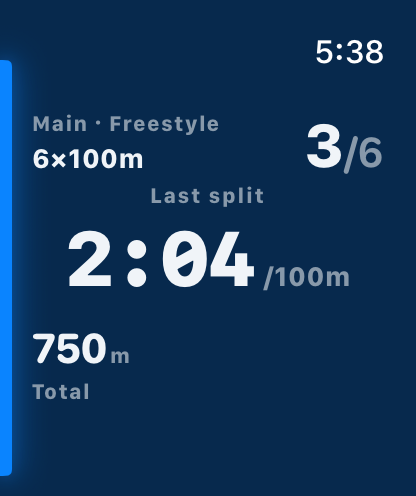
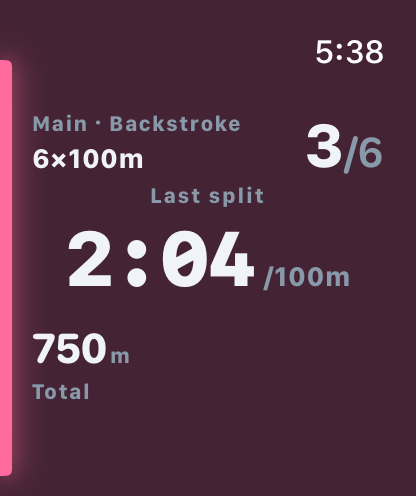
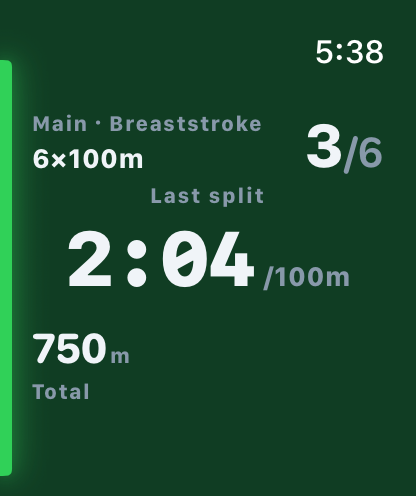
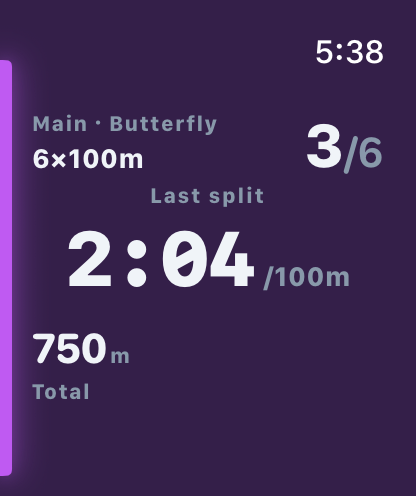
Apple Watch · App screenshots · Example swim data
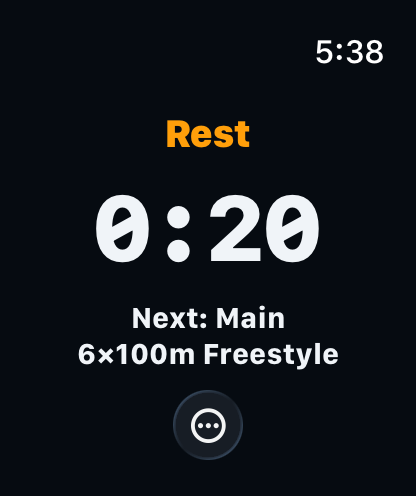
Get a buzz when rest ends.
Check the time left and what’s next.
Your watch vibrates when it’s time to go.
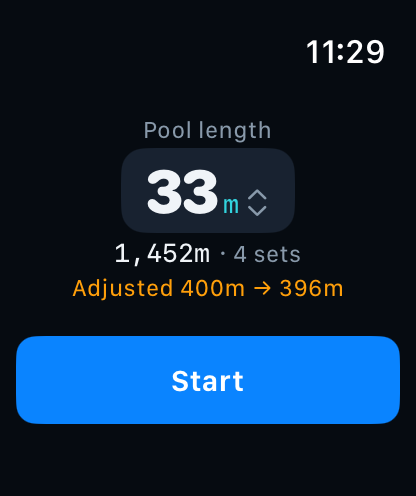
Make the plan fit your pool.
Set your pool length to adjust the planned distance.
03 · Review your swims
Track your distance
and consistency.
Review your pace and efficiency for each stroke.
Look back at your swim history to see what’s changing.
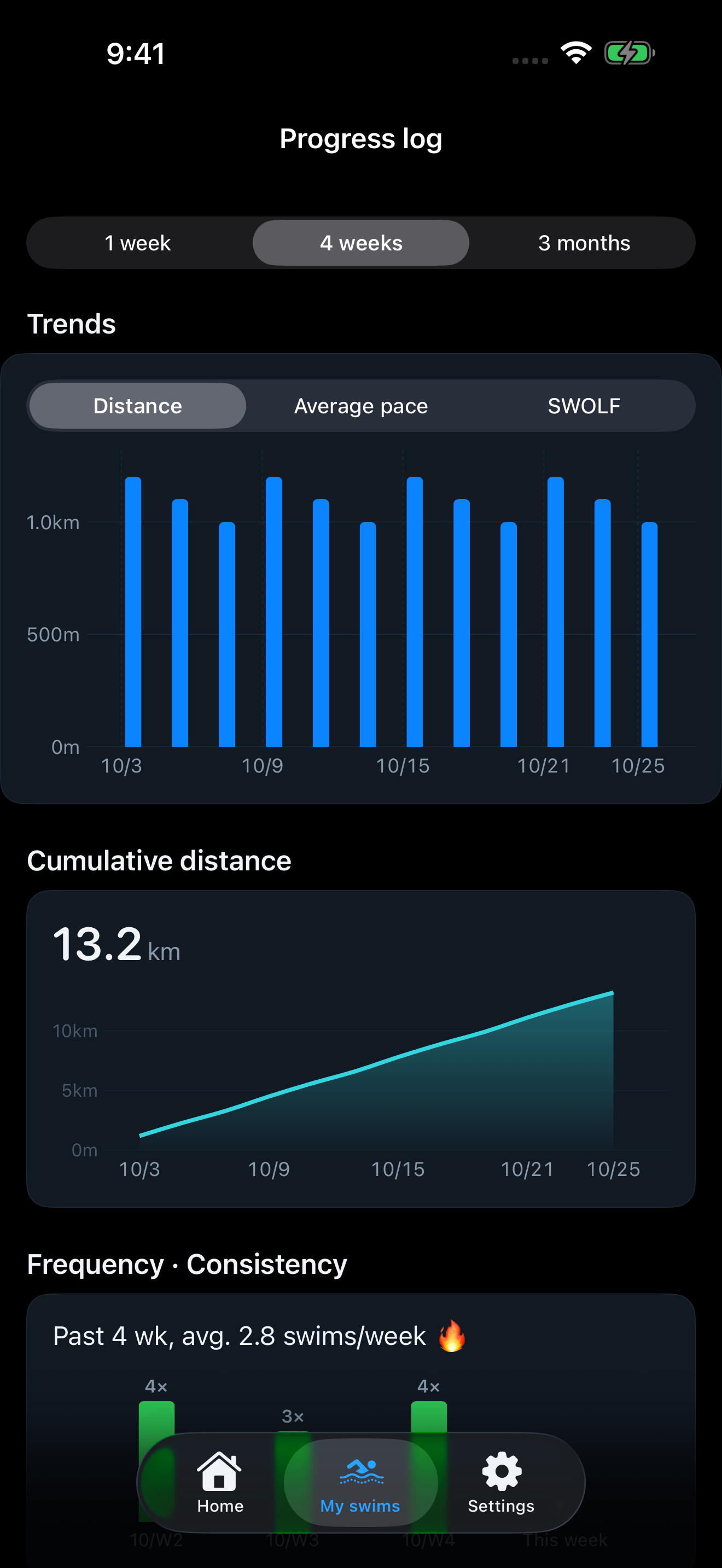
Swim data shown in screenshots is for illustration. Available analysis depends on the data in your Health records.
How do I tell the strokes apart?
Each stroke has a name and color, shown together in every set.
- Freestyle
- Backstroke
- Breaststroke
- Butterfly
Can I change what my watch shows?
The large pace number is your last completed rep’s pace per 100 meters. To show or hide total distance, open SwimFlow on your iPhone and go to Settings → Watch display layout. Once the updated plan reaches your watch, the change takes effect from your next workout.
Can I start without any recorded swims?
Yes. SwimFlow can suggest a plan using your profile, including your swimming experience and preferred stroke. You can give the app access to your Health records later.
Why are my swims missing?
First, check that your swim appears in the Health app on your iPhone. In Health, go to Summary → your profile → Apps under Privacy → SwimFlow and check that read access is allowed. Then, in SwimFlow, go to Settings → Help & feedback → Reload swims. Workouts saved on Apple Watch can take time to appear in Health on your iPhone.
What does “Waiting for response” mean?
It doesn’t always mean your watch is disconnected. Make sure SwimFlow is installed on your paired Apple Watch, then open the app on your watch. Check that the plan you sent from your iPhone appears before you start.
What happens to my data if I delete the app?
Deleting SwimFlow may remove your saved profile and plans, so try other troubleshooting steps first. Workouts saved in Apple Health are stored separately and can be imported again with read access. SwimFlow does not offer account backups or cloud sync between devices.
Does my data leave my device?
Swim analysis and planning happen on your device. The iPhone app reads your Health records, and the watch saves the workouts it records to Apple Health. The iPhone app sends optional usage analytics to TelemetryDeck only if you consent to both analytics collection and international data transfer. These include feature-use events, app and device information, and a hashed identifier. Workout measurements are not sent as analytics, and the watch does not collect usage analytics. See the Privacy Policy for details and contact information.

Ready for your next swim?
Requires iOS 18 or later and watchOS 11 or later.
On-watch workouts require a swimming-capable Apple Watch paired with an iPhone.